Electrical schematics in your browser

Draw and validate wire schematics for Victron installations

WireElectric is drawing software for electrical installations in campers, caravans, boats and off-grid systems. Drag real components — MultiPlus, MPPT, Argofet, Orion-Tr Smart, batteries, fuses, 230V groups — onto the canvas and the app works out the voltage per net, the cable size you need and which protection fits.

Drawing and validation are free and work without an account. You only need an account to save.

  • Free drawing, no account
  • Victron components with real terminals
  • Checks on cables, fuses and voltage
Screenshot of the WireElectric editor showing a 12V camper schematic: component library on the left, a drawing with battery, MultiPlus, MPPT and fuse box in the middle, findings at the bottom.
The editor with a 12V camper installation: battery, MultiPlus, MPPT, fuses and 230V groups, with live findings below the drawing.
  • 12V, 24V, 48V and 230V
  • Real components
  • Wire size calculation
  • Fuse checks
  • Voltage drop
  • Victron components

What WireElectric works out for you

You place real devices instead of blocks, and the diagram calculates along while you wire it up.

Real components

Lead or LiFePO4 batteries, fuses and fuse holders, busbars, inverters, MPPT charge controllers, DC-DC chargers, alternators, 230V circuits and loads — plus Victron models such as MultiPlus, SmartSolar, Orion XS, SmartShunt, Lynx Distributor and Cerbo GX.

Smart electrical connections

Every component has its own terminals. WireElectric knows which one is positive, negative, AC, DC, input or output and tells you when two terminals do not belong together.

Cables and voltage drop

For each cable you enter cross section, length and material. You see the voltage drop in volts and in percent and whether the cable can carry the current.

Fuses

The check looks at whether a circuit is protected and whether the fuse rating suits the cable behind it.

Automatic checking

The diagram is checked for voltage per net, missing earth, cables that are too thin and fuses that do not fit. Errors and warnings sit together in the check drawer.

A schematic in three steps

After half an hour of drawing you do not have a picture but something you can buy parts and build from:

  1. 1

    1. Pick your components

    Search the library for MultiPlus, SmartSolar, Lynx, Cerbo, batteries or fuses and drag the component onto the drawing. Every component carries the terminals of the real device.

  2. 2

    2. Run the cables

    Connect terminal to terminal. Wire colour follows polarity and domain, and per cable you enter size and length.

  3. 3

    3. Check and export

    Findings react to your drawing right away: a missing return path, an overloaded cable, the wrong voltage or an undersized fuse. Then print the schematic or keep it as a PDF.

  • a clear electrical diagram of your own installation
  • the components you will actually use, from the catalogue
  • cables with cross section, colour and length per connection
  • the calculated voltage drop per cable
  • the fuse rating per circuit
  • a checked diagram with its errors and warnings
  • the diagram saved in your account, ready to print or keep as a PDF

Drawing and checking work without an account. Saving needs a free account; what an export without watermark costs is shown under credits in your account.

How it looks

On laptop, tablet and phone

The same drawing on a large screen and with your fingers on a touch screen.

Mockup of a browser window running WireElectric on a laptop with a complete 12V camper diagram on the canvas.
Laptop and desktop. The whole canvas in view, with the library, checks and properties alongside.
Mockup of a tablet running WireElectric with the component library as a side panel next to a DC-DC charger diagram.
Tablet. The component library sits as a side panel next to the drawing.
Mockup of a phone running WireElectric showing an Orion-Tr Smart with terminals and cables on the canvas and a tab bar at the bottom.
Phone. Large buttons, a More menu and touchable terminals; a tap only selects.
Mockup of a phone running WireElectric with the component library as a bottom sheet showing tiles of batteries and chargers.
Library on a phone. Components slide in as a sheet over the canvas and close again after placing.

What WireElectric does

Multiple voltages in one schematic

12V, 24V and 230V side by side. The app resolves the voltage per net — including two 12V batteries in series — and warns as soon as a device sits on the wrong voltage.

Victron components with real terminals

Symbols are generated from the component data, so the terminals match the device: AC in, AC out 1 and 2, DC, Ground and Energize.

Cables, fuses and voltage drop

Enter cable size, length and current per connection; the validation computes voltage drop and reports undersized protection or missing earthing.

Print and keep as PDF

Print a schematic or save it as PDF to take to the installation or share with your installer.

What people use it for

In an ordinary diagram tool a battery and an inverter are both a rectangle. Such a program does not know how much current runs through a cable, which fuse suits it, what voltage a net carries, which terminals a component has or where an electrical mistake is.

Camper and caravan

A 12V installation with inverter/charger, solar, a DC-DC charger from the alternator and 230V groups on shore power.

Camper diagram →

Boat

On-board system with a split charge relay or ArgoFET, service and starter batteries, ground to the hull and shore power with earth leakage protection.

Boat diagram →

Off-grid and tiny house

A 24V or 48V setup with solar chargers, battery bank, busbars and fuses, including voltage drop over long cable runs.

Off-grid diagram →

Example wiring diagrams for campervan, boat and off-grid

Five worked installations with battery, fuses, main switch, charge controller and inverter — each diagram shows exactly which parts it uses and what they are wired to.

Example diagrams →

All topics and calculators

A page per system type, plus calculators for wire gauge, fuses, voltage drop and battery capacity.

Wire gauge calculator

Find the cross-section that suits your 12V or 24V system, based on current, length and voltage drop.

View →

Fuse size calculator

Find a suitable fuse for your circuit, including a check on whether the cable can carry it.

View →

Voltage drop calculator

Check how much voltage you lose over a cable and what reaches your load.

View →

Battery capacity calculator

Work out how much battery capacity in Ah you need for your daily use and autonomy.

View →

Battery runtime

Calculate how long a battery can power a load, including the usable share and inverter losses.

View →

Watts ↔ Amps

Convert power straight to current at 12V, 24V, 48V or 230V.

View →

Solar panel calculator

Work out indicatively how many Wp of solar panels your daily consumption needs.

View →

From calculation to complete diagram

WireElectric does not calculate this in isolation but for every connection in your own diagram: place the real components, draw the cables and see straight away where the cross-section, the fuse or the voltage drop is off.

You can start drawing without an account.

Open WireElectric
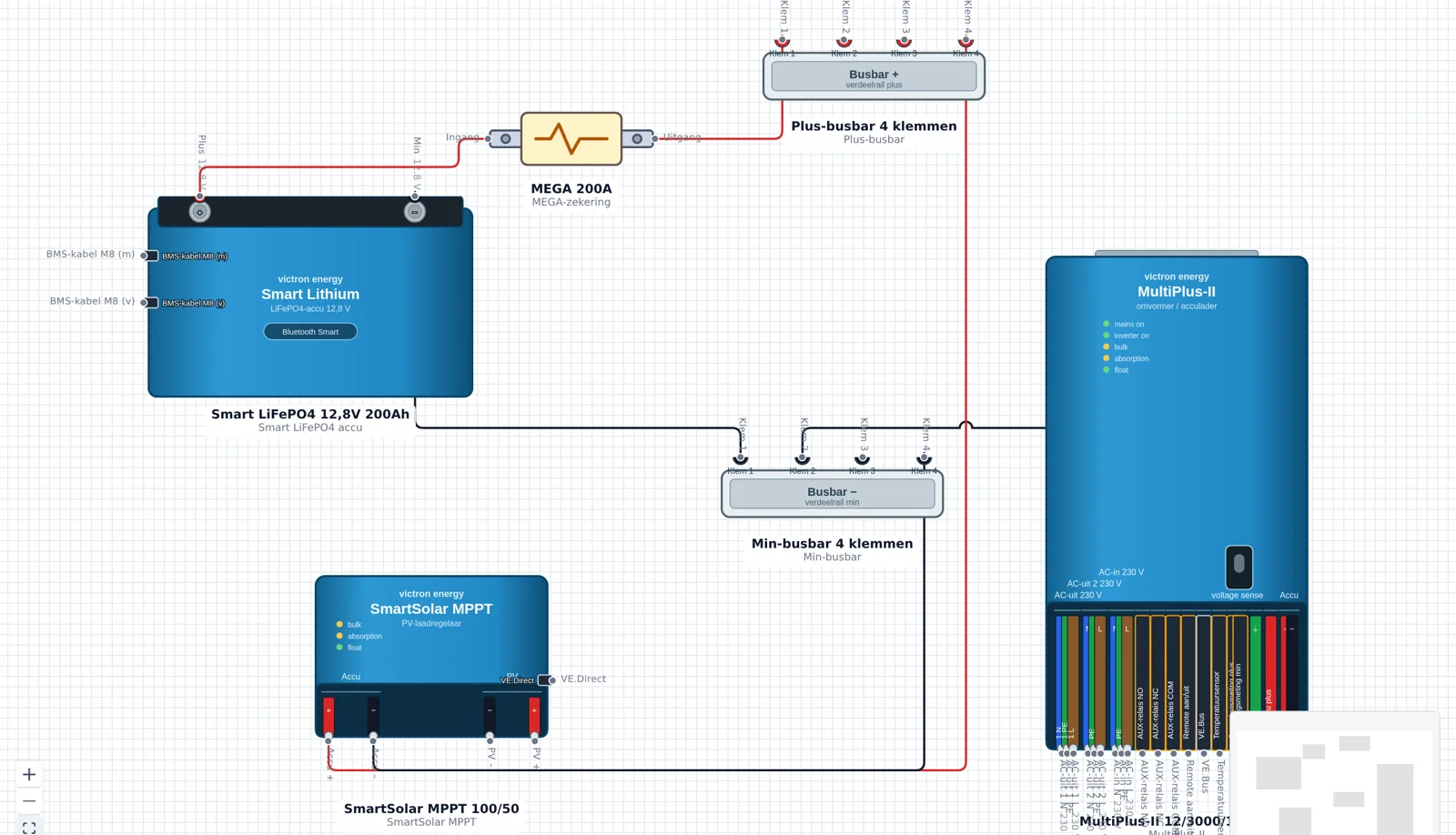
WireElectric editor showing a 12V campervan diagram: LiFePO4 battery, MEGA fuse, busbars, MultiPlus-II and SmartSolar MPPT with cables between the terminals.

Not a general drawing tool

WireElectric uses components with their own terminals and electrical properties and calculates with them: voltage per net, current per cable, conductor size, voltage drop and fuses.

WireElectric is developed and maintained in the Netherlands by Twiks. Component data comes from manufacturer documentation wherever possible. The checks help you design, but they are not an inspection: have an installation reviewed by a professional when in doubt.

Topics and installation types

Each page shows what you can draw and check in WireElectric for that type of installation.

Frequently asked questions

What is WireElectric?
A web application for drawing wire schematics for mobile and off-grid installations, with built-in technical validation instead of plain boxes on a drawing sheet.
Do I need an account to start?
No. You can draw and validate straight away without an account; your design stays in your browser. A free account is only needed to keep your drawings and open them on other devices.
Does it work with Victron equipment?
Yes. The catalogue includes MultiPlus, SmartSolar MPPT, Orion-Tr Smart, Argofet, Cyrix, shunts and batteries with their actual inputs and outputs. Missing devices can be added as data.
Can I use brands other than Victron?
Yes. Next to the Victron catalogue there are generic components: batteries, busbars, fuses, breakers, earth leakage protection, loads and inverters. Components are data, so a missing device is added as data, not as custom code.
What exactly does the software check?
Voltage per net (12V, 24V, 48V and 230V), whether every source has a return path, whether required terminals are connected, whether cable size and length handle the current and voltage drop, and whether fuses and breakers match the cable and the load.
Can I print my schematic or save it as a PDF?
Yes. Print the schematic or save it as a PDF so you can take it to the installation or send it to your installer.
What does it cost?
Drawing and validation are free. Extras — more components than the free limit, extra projects or an export without watermark — use credits that you buy in bundles.
Electrical schematics in your browser

Draw and validate wire schematics for Victron installations

Start drawing now

Drawing and validation are free and work without an account. You only need an account to save.